The short answer: A website redesign keeps your Google rankings when you do four things: record how your current site performs, keep the pages and content that bring in traffic, set up a 301 redirect from every old URL that changes, and monitor Google Search Console closely after launch. Most traffic losses after a redesign come from skipping one of these steps, not from the new design itself.
This guide walks through each step in order, so you can plan your redesign with your developer or check that your agency is doing it properly.
Why rankings drop after a website redesign
Google stores information about your site page by page. Each URL has its own history: the searches it ranks for, the links pointing to it, and the content Google has read on it. When a redesign changes or removes those URLs, Google has to rediscover where everything went. If it can’t, that history is lost.
The most common causes of lost rankings are:
- Missing redirects. Old URLs return a “page not found” (404) error instead of sending visitors and Google to the new page.
- Deleted or thinned-out content. Pages that ranked well are removed, merged carelessly, or shortened during the redesign.
- Lost on-page SEO. Page titles, meta descriptions, headings, image alt text and structured data are not carried over to the new site.
- A blocked new site. The “noindex” setting or robots.txt block used during development is left on after launch.
- A slower site. The new design adds heavy images, animations or plugins that make pages load more slowly, especially on mobile.
If you’re still deciding whether you need a redesign at all, read 7 Signs Your Business Website Needs a Redesign first.
Before the redesign: record what you have
1. Save your current performance
Before any work starts, export data from Google Search Console and Google Analytics: your top pages by clicks, the search queries that bring visitors, and your monthly traffic for the past 12 months. This is your baseline. Without it, you can’t tell after launch what was lost or why.
2. List every current URL
Make a complete list of the URLs on your current site, including service pages, blog posts, category pages and PDF files that get traffic. You can start from your XML sitemap and confirm with a crawler tool such as Screaming Frog. Also note which pages have links from other websites, because those links pass value to your site.
3. Decide what to keep, update, merge or remove
Go through the list and mark each page. Pages that bring in traffic or inquiries should be kept and improved, not deleted. Pages with similar topics can be merged into one stronger page. Only pages with no traffic, no links and no business value should be removed, and even those should be redirected to the closest relevant page.
During the redesign: protect what works
4. Map old URLs to new URLs and set up 301 redirects
This is the most important step. Create a spreadsheet with two columns: the old URL and the new URL it should point to. Every old URL that changes needs a permanent (301) redirect to its closest matching new page, not to the homepage. Google’s site move documentation recommends preparing this mapping before the move and using server-side permanent redirects.
If your site runs on WordPress, the Redirections module in Rank Math or a plugin such as Redirection lets you add and test 301 redirects without editing server files. Where possible, keep your existing URLs unchanged, because a URL that doesn’t change needs no redirect at all.
5. Carry over your on-page SEO
A new design should not mean new, untested page titles. For each page you keep, copy over the page title, meta description, main heading, body content, image alt text and structured data, then improve them where needed. Keep internal links pointing directly to the new URLs instead of relying on redirects.
6. Build on a staging site, then remove the block at launch
Build and review the new site on a private staging link that search engines can’t index. Keep a written note to remove the noindex setting and any robots.txt block on launch day. A new site that stays hidden from Google after launch is one of the most common and most damaging redesign mistakes.
7. Check speed and mobile usability before launch
Test key pages on PageSpeed Insights and on real phones. Compress images, limit heavy animations, and remove plugins you don’t need. The new site should be at least as fast as the old one.
Launch day checklist
- Remove noindex settings and staging robots.txt blocks
- Switch on all 301 redirects and test a sample of old URLs
- Submit the new XML sitemap in Google Search Console
- Test every contact form, booking tool and phone link
- Check that Google Analytics and Search Console are still tracking
- Use the URL Inspection tool in Search Console on your most important pages
After launch: monitor and fix quickly
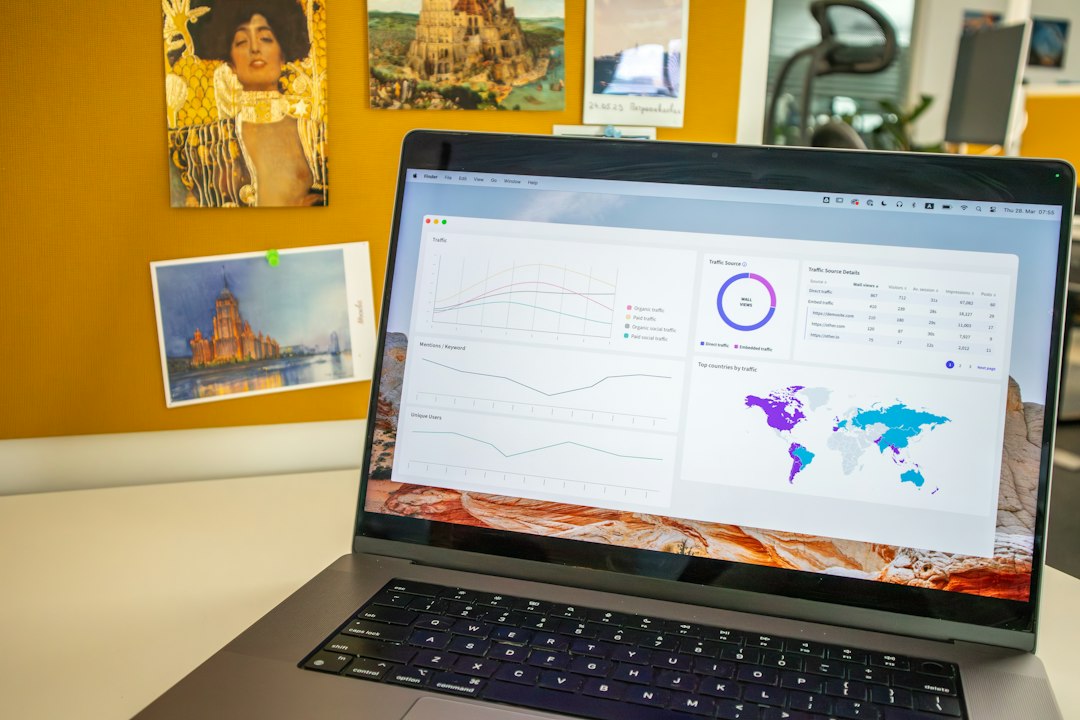
Check Google Search Console every few days for the first month, then weekly for the next two months. Look at the Pages report for new “not found” errors, and compare clicks and impressions with your baseline. Any old URL showing a 404 error needs a redirect added.
Expect some movement. Google processes a site move one URL at a time, and its documentation notes that a medium-sized site can take a few weeks for most pages to move in its index. A small, temporary dip is normal. A large or lasting drop usually points to missing redirects or removed content, which can be fixed if you catch it early.
Keep your redirects in place for at least one year, as Google recommends, and ideally permanently, since other websites may still link to your old URLs.
A special case: changing your domain name
If your website redesign also moves your site to a new domain (for example, from a .com to a .ph), every URL changes. In addition to the steps above, verify both domains in Search Console and use its Change of Address tool after the redirects are live. Domain changes carry more risk than a redesign on the same domain, so plan for a longer monitoring period.
Frequently asked questions
Will a website redesign always cause a drop in rankings?
No. With proper redirects, preserved content and careful monitoring, most sites keep their rankings, and many improve because the new site is faster and better organized.
Can I change my URL structure during a redesign?
Yes, but only if there is a clear benefit, such as cleaner, more descriptive URLs. Every changed URL needs a 301 redirect. If your current URLs are fine, keeping them is the safest choice.
Does a redesign affect how AI tools see my business?
It can. AI search tools such as Google’s AI Overviews rely on the same indexed pages, so the same steps protect your visibility there. A redesign is also a good moment to make your content clearer for AI tools, as explained in SEO vs GEO: What Philippine Businesses Need to Know.
How much does a website redesign cost?
It depends on the size of your site, the content changes and the features you need. See How Much Does a Website Cost in the Philippines in 2026? for typical ranges.
Plan your redesign with Spindiv Kinetics
Our website redesign service includes a full audit of your current site, URL mapping, 301 redirects, staging review and post-launch monitoring, so your new site keeps the rankings you’ve already earned. Request a free website review and we’ll tell you whether your site needs targeted fixes or a full redesign.
Sources
- Site moves with URL changes — Google Search Central
- Redirects and Google Search — Google Search Central
- PageSpeed Insights — Google
Photos: Hal Gatewood and Walls.io on Unsplash.